Set up an Azure Databricks workspace
The first time I stood up a Databricks workspace with private endpoints and restricted access, the initial login failed silently. Turns out there's an undocumented set of requirements for the very first login that aren't obvious from the portal or the Terraform resource. This page captures the setup flow I've landed on, from first login through identity management and SQL connectivity testing.
First login requirements
The first login to a new Databricks workspace has specific requirements that aren't enforced at deployment time. They only surface when someone tries to open the workspace URL and gets a blank page or a cryptic error.
The user performing the first login must be:
- A member of the Azure AD tenant (not a guest account)
- An Owner or Contributor on the Databricks resource in Azure
- A Global Admin on the tenant
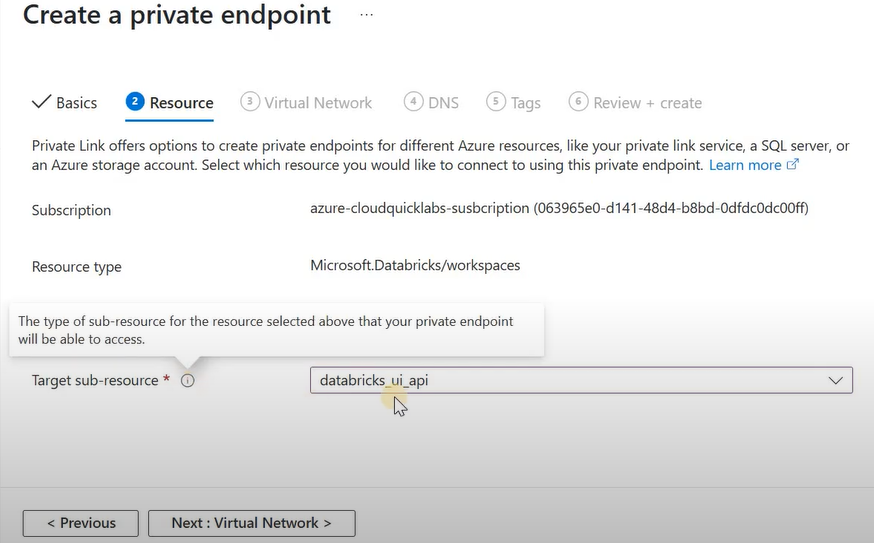
I've seen this trip up teams that use service accounts or guest identities for initial resource provisioning. The workspace deploys fine via Terraform, but nobody can log in because the deployment identity doesn't meet all three criteria.
Accounts console setup
After the first login, user and permission management happens through the Databricks accounts console at accounts.azuredatabricks.net, not through the Azure portal.
The flow I follow:
- Navigate to
accounts.azuredatabricks.net - Add users or grant permissions
- In the Workspaces section, click the relevant workspace
- Set permissions for the user. The user who will manage the workspace should be added as an admin at this level.

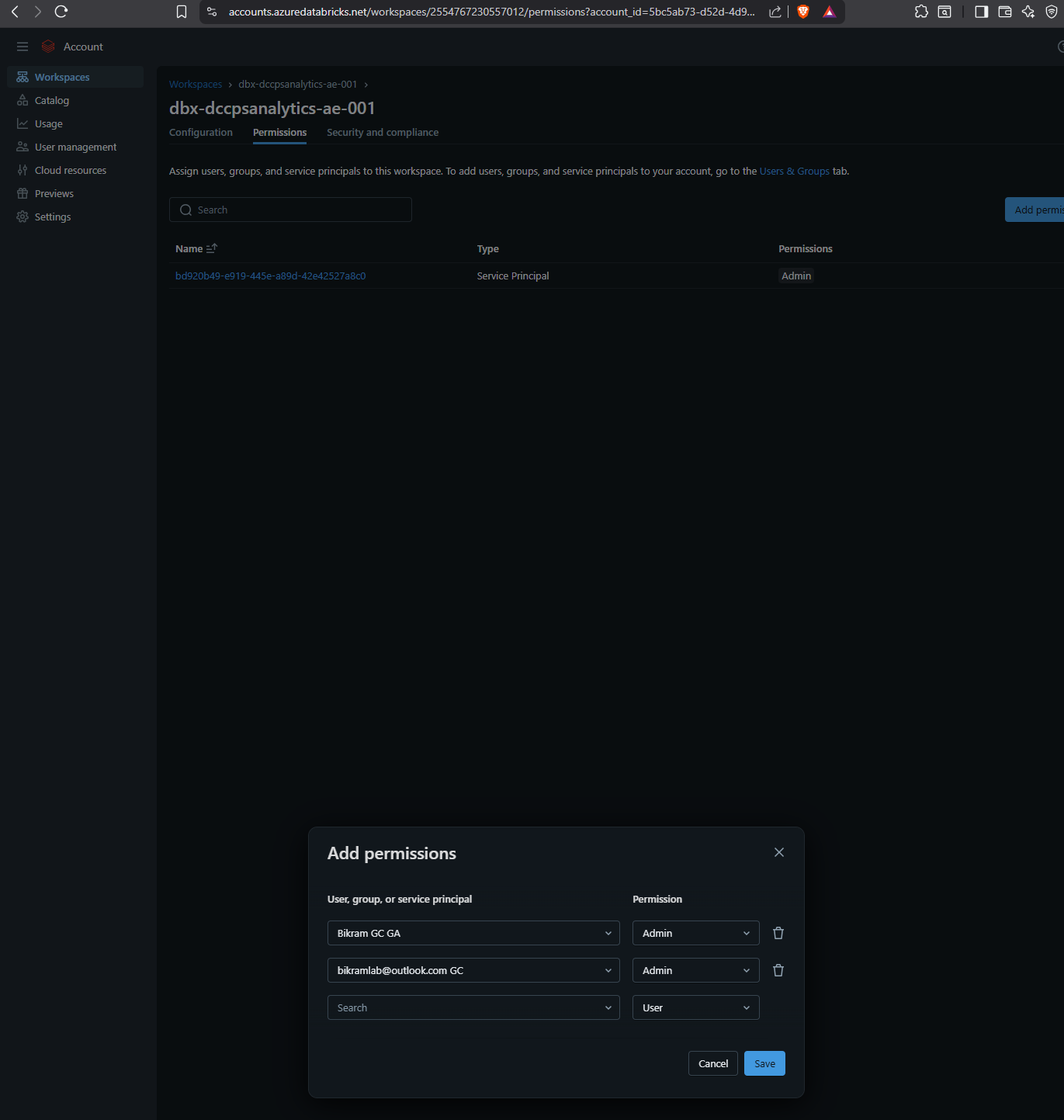
Role assignment
Roles are assigned from within the workspace settings. This is separate from Azure RBAC. Databricks has its own role model.


After roles are set, access the workspace through the Databricks URL directly.
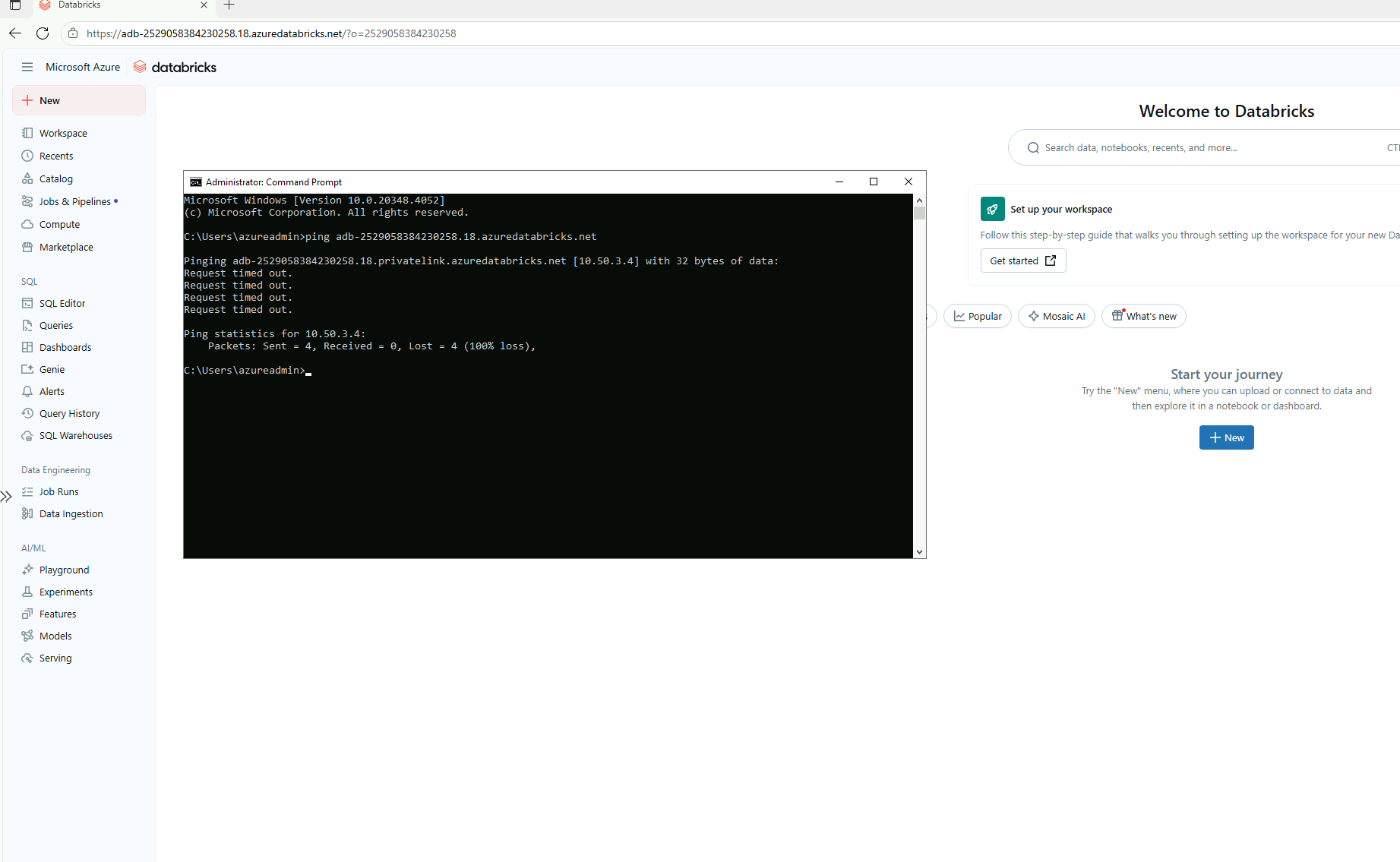
Private endpoint for UI access
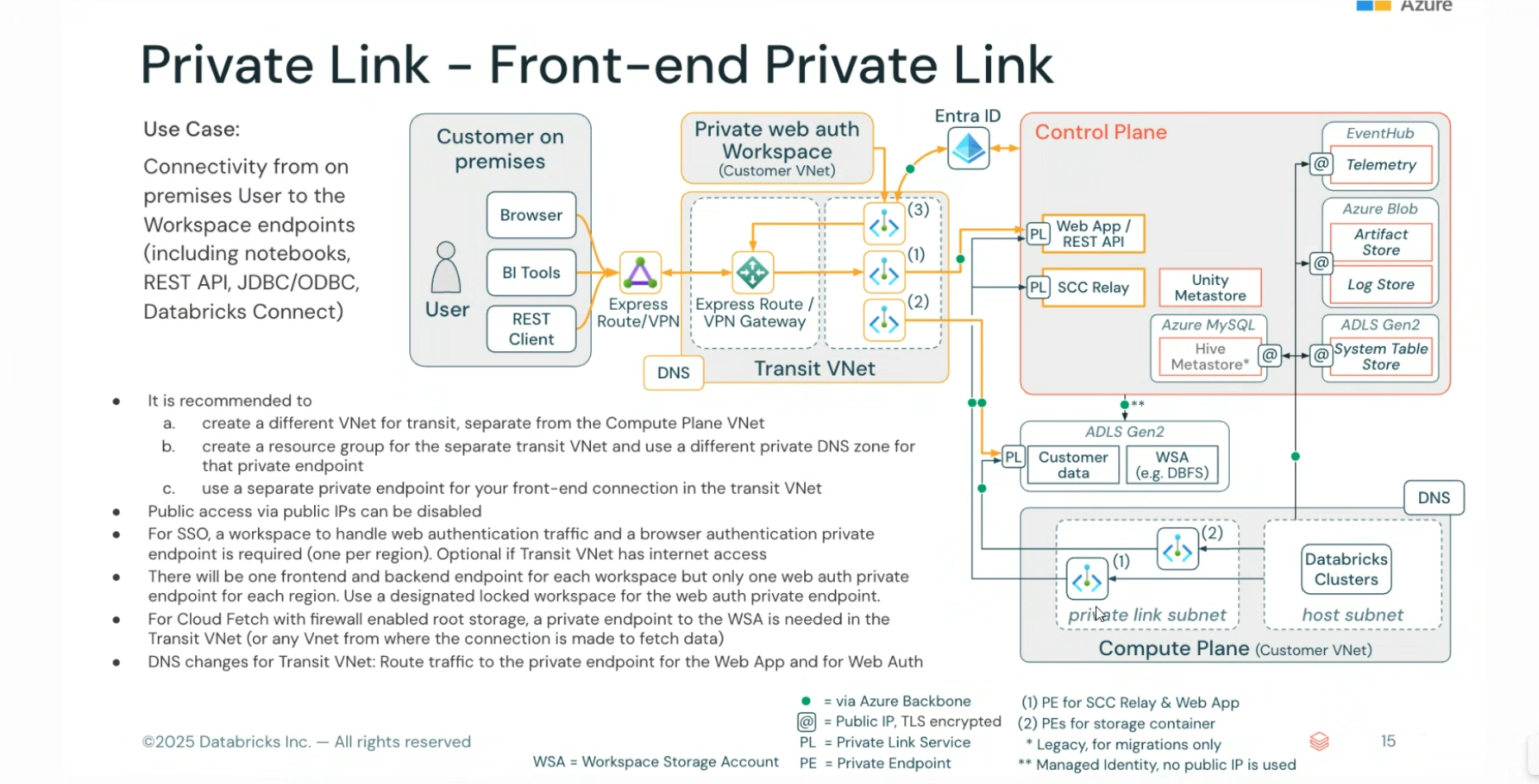
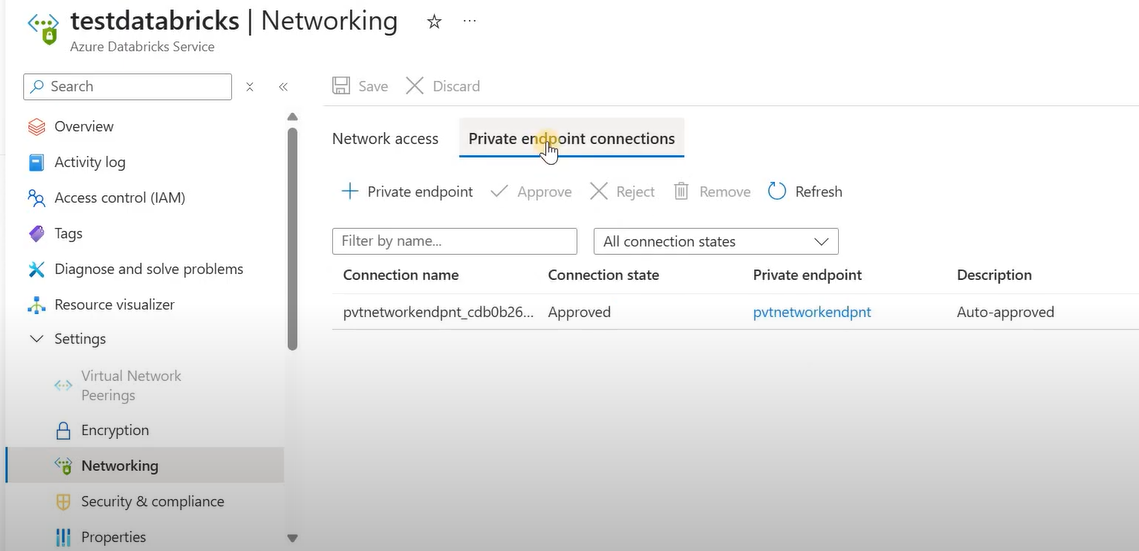
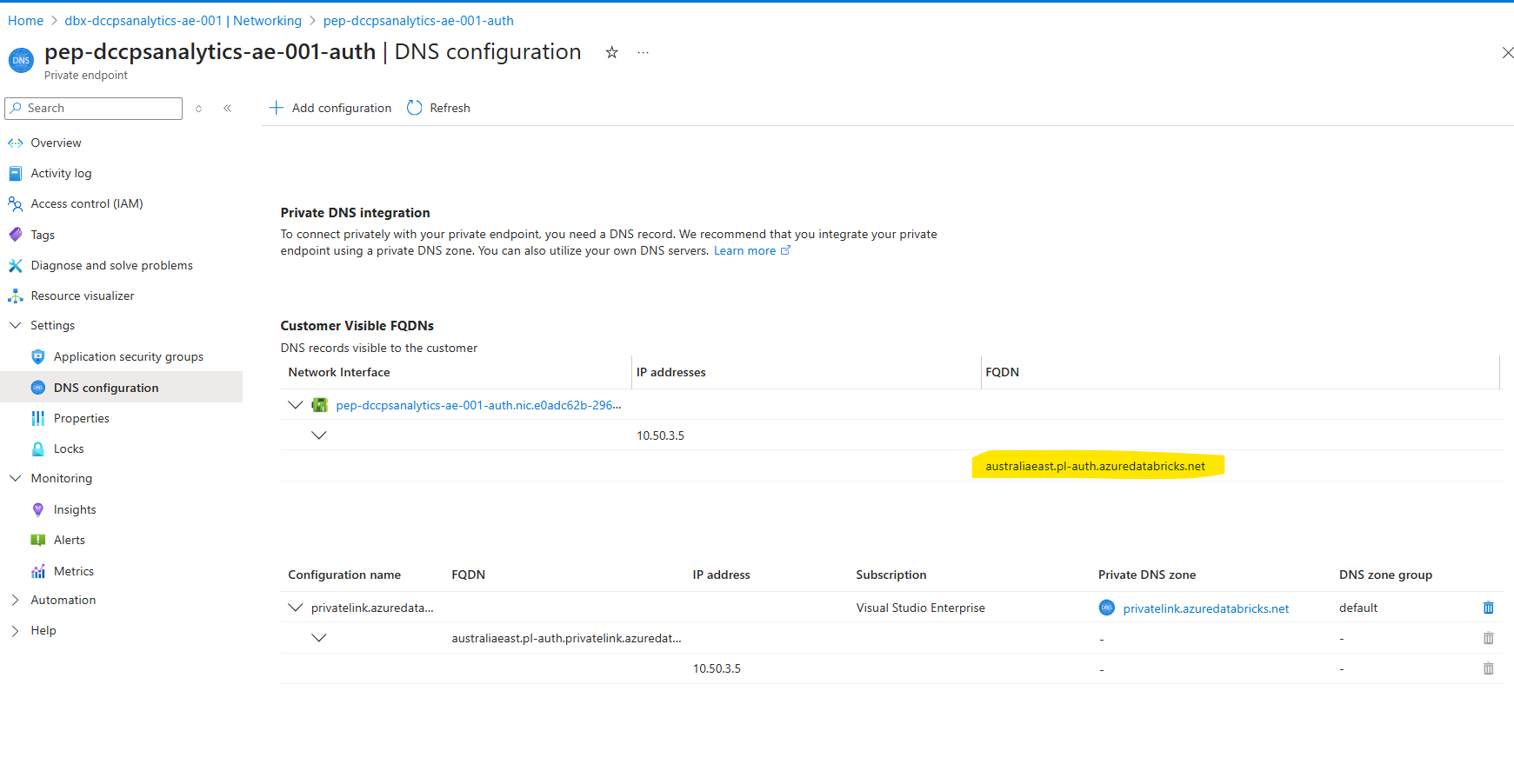
When the workspace is deployed with private endpoints, the UI private endpoint is what gets used for browser-based access to the workspace. This is the endpoint that needs to resolve from whatever network the user is on.
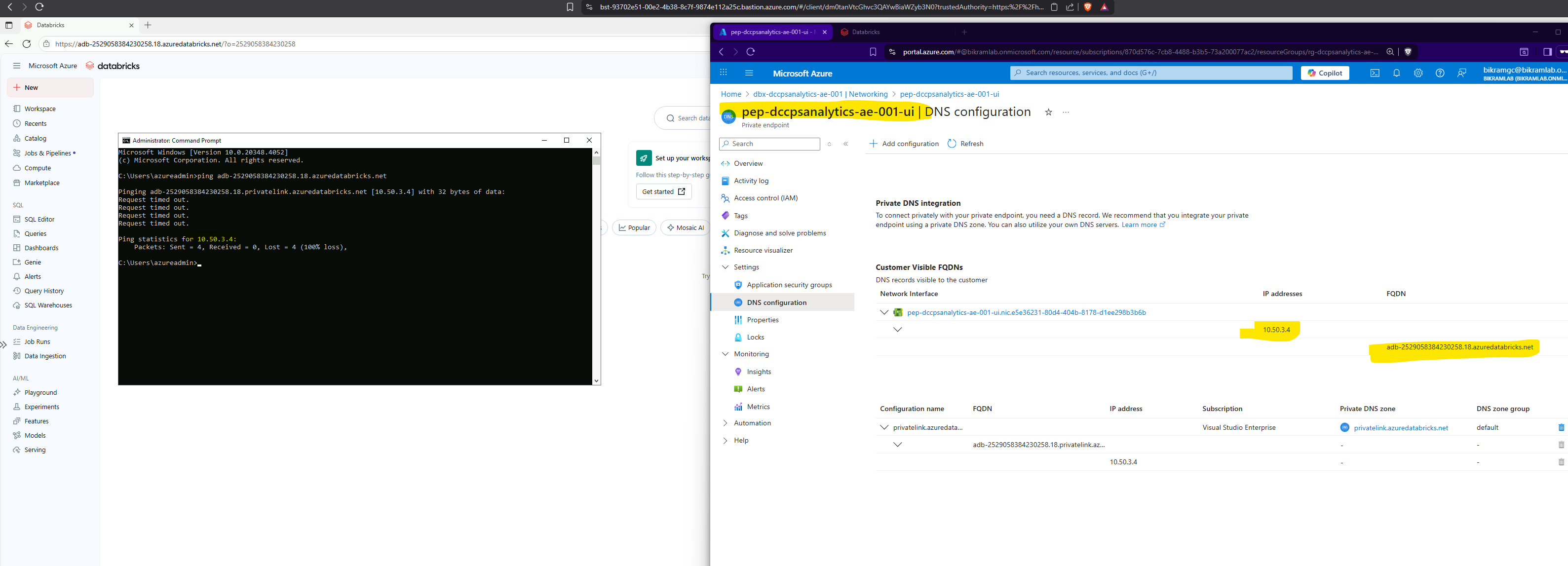
Authentication flow
Databricks uses its own authentication mechanism that chains through Azure AD. Understanding this matters when debugging access issues. It is not a straightforward Azure AD token exchange.
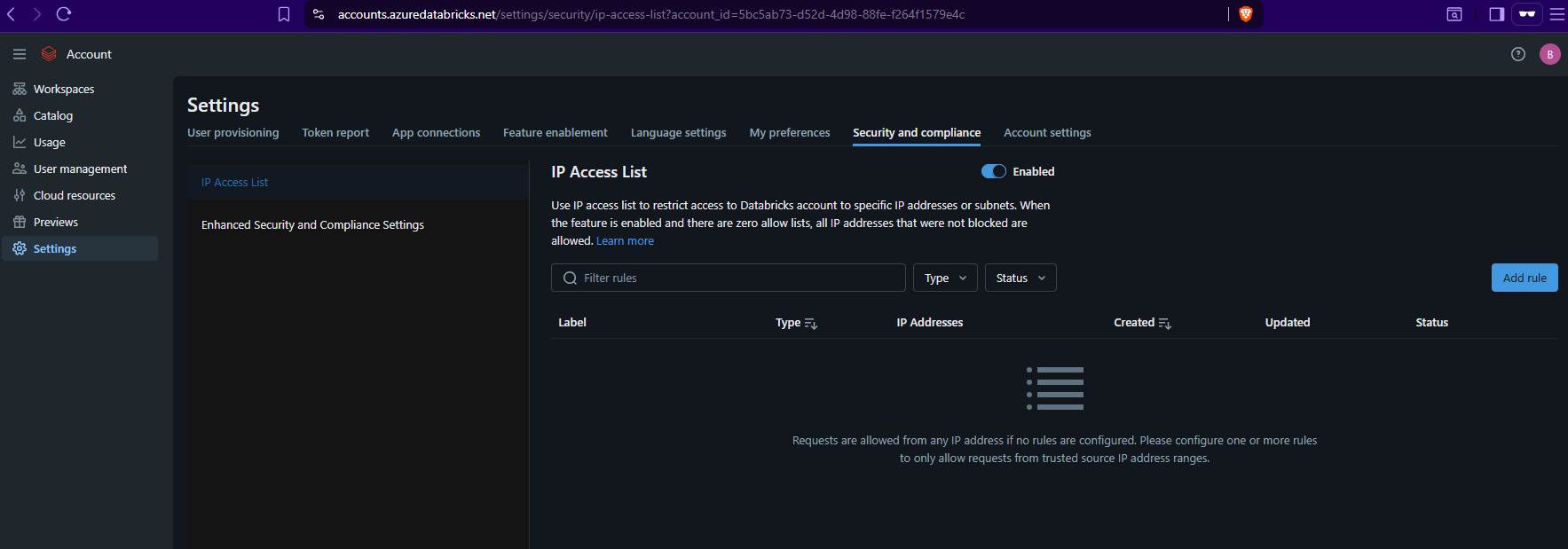
IP restrictions from the accounts console
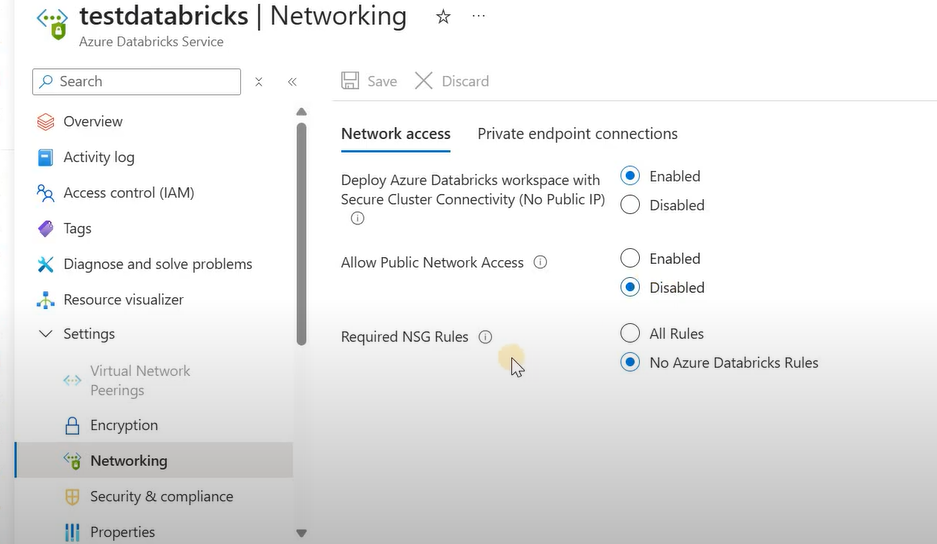
When public access is enabled on the workspace, I can restrict access to specific IPs from the accounts console. This is a separate control from the workspace-level allowed/blocked IP list, and it overrides whatever is set on the workspace itself.
This caught me off guard the first time. I had an IP allow list configured on the workspace resource in Terraform, but the accounts console restriction was blocking access from a different range. The accounts console setting wins.
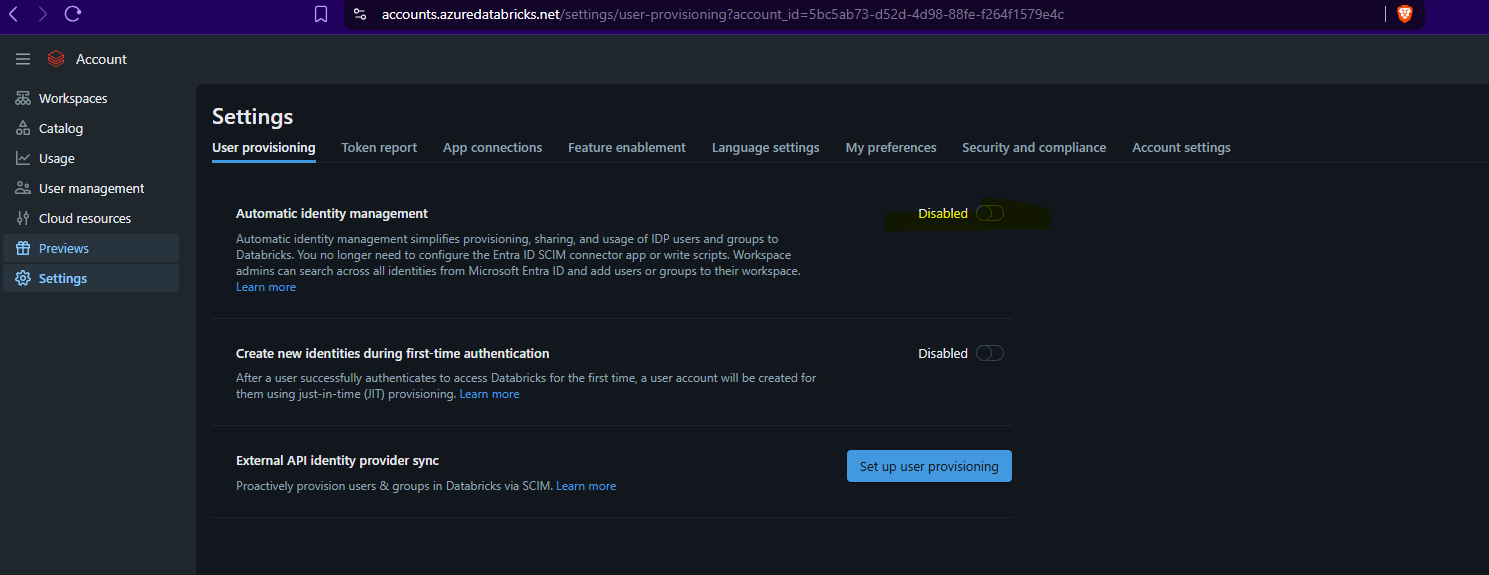
Automatic identity management
Databricks supports SCIM-based identity provisioning, which means I can sync users and groups from Azure AD automatically rather than managing them manually in the accounts console.
Testing connectivity to Azure SQL from Databricks
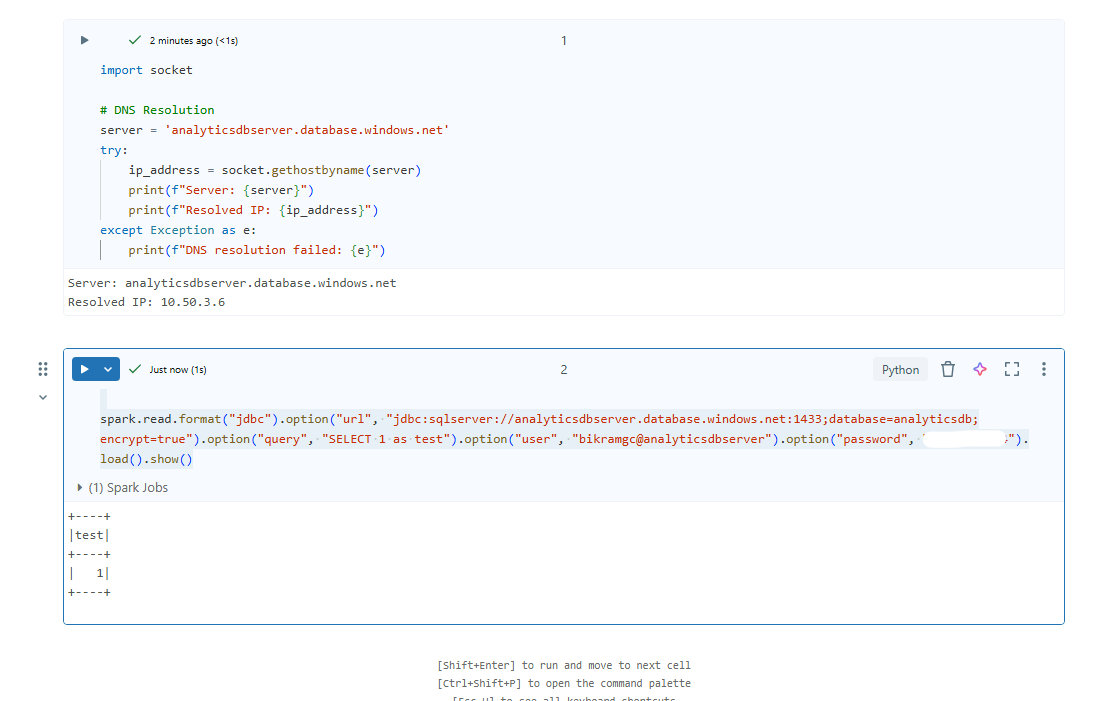
When notebooks need to query Azure SQL, I test the JDBC connectivity before building any production pipelines. This is the minimal test I run from a notebook:
spark.read.format("jdbc") \
    .option("url", "jdbc:sqlserver://analyticsdbserver.database.windows.net:1433;database=analyticsdb;encrypt=true") \
    .option("query", "SELECT 1 as test") \
    .option("user", "bikramgc@analyticsdbserver") \
    .option("password", "your_password") \
    .load() \
    .show()
If this fails, the issue is almost always network-level. The notebook cluster can't reach the SQL server's private endpoint, or DNS resolution isn't returning the private IP. I verify IP resolution directly from the notebook to confirm: