Set up an Azure SRE Agent
By the end of this page you will have an Azure SRE Agent running in a lab subscription, reading one Log Analytics workspace, aware of one subscription, and you will have watched it answer a question about your environment and create a resource group after you approved the action.
Everything below was done in a Visual Studio Enterprise subscription in Australia East on 14 September 2026. Use the same names as you read through, or substitute your own consistently. This is a lab walkthrough, not a production pattern: the agent ends up with Reader on a whole subscription, and you approve its write actions by hand.
If you want the tour of the rest of the portal rather than the setup path, see Azure SRE Agent portal surfaces.
Before you start
You need:
- An Azure subscription where you can create resources and assign roles. The onboarding steps assign Reader on the subscription and Log Analytics Reader on a resource group, so a plain Contributor is not enough.
- A Log Analytics workspace that already has data you care about. One connector points at one workspace, so pick the workspace you actually investigate from.
Create the resource group
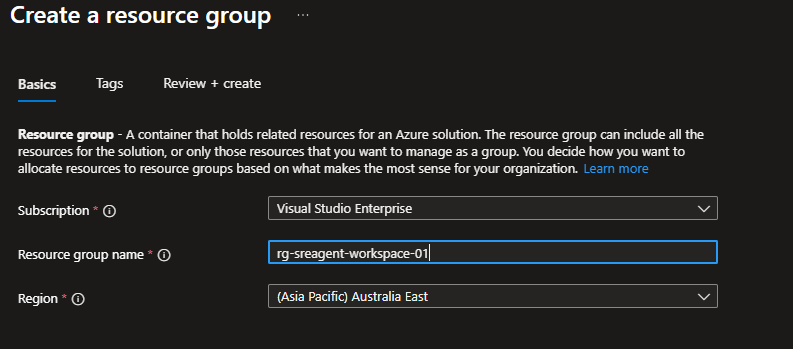
Create the resource group that will hold the agent and the resources deployed alongside it. In the Azure portal, go to Resource groups, select Create, and fill in the subscription, the name rg-sreagent-workspace-01, and the region (Asia Pacific) Australia East.
Create the agent
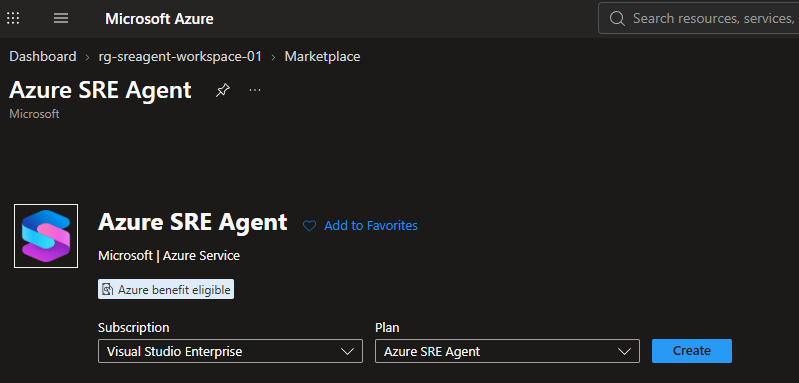
From the resource group, open Marketplace and search for Azure SRE Agent. The offer is published by Microsoft and is marked Azure benefit eligible. Leave the plan as Azure SRE Agent and select Create.
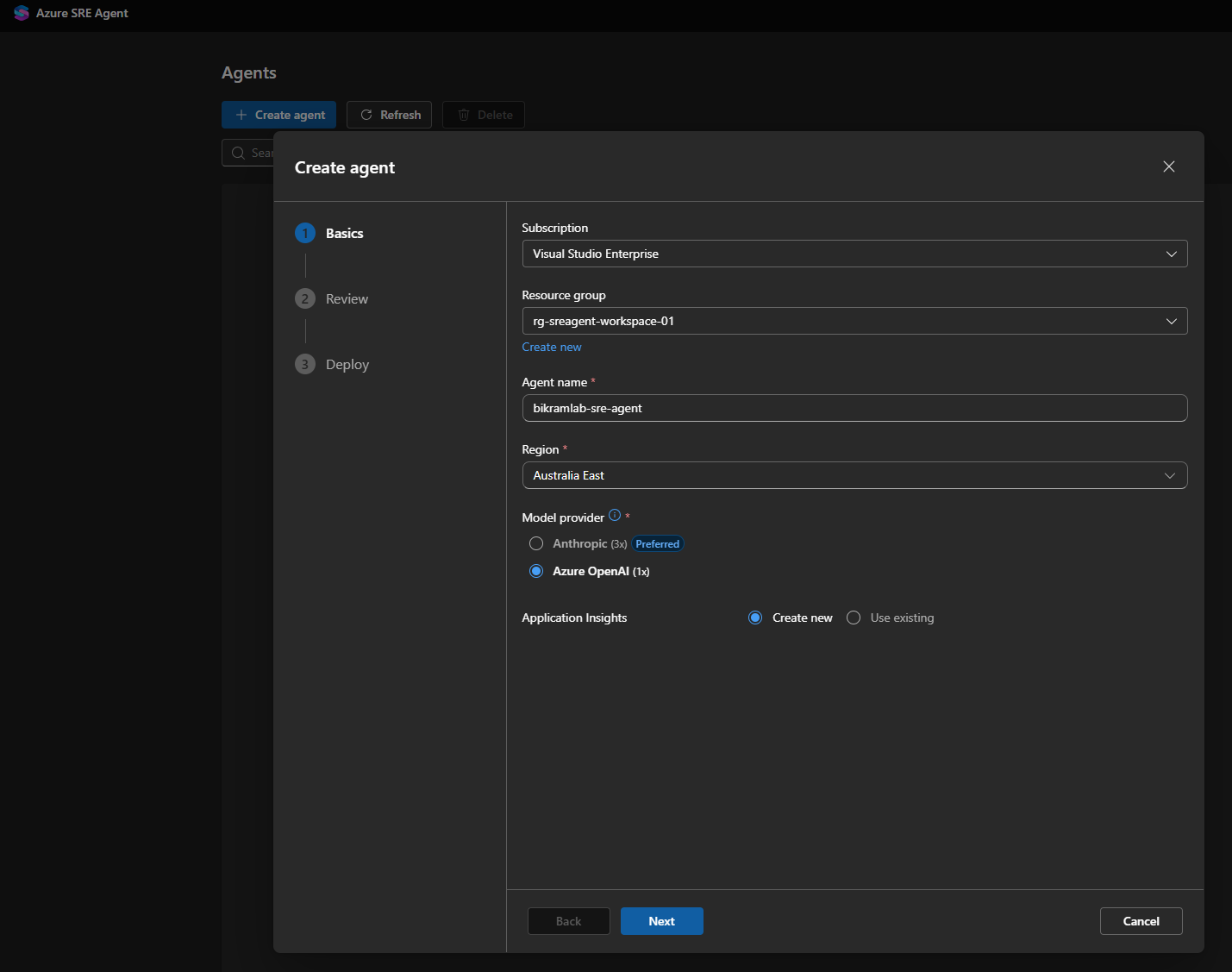
The wizard has three steps: Basics, Review, Deploy. On Basics, set:
- Subscription and Resource group: the ones you created above.
- Agent name:
bikramlab-sre-agent. This name ends up in the agent endpoint URL and in the telemetry, so keep it short. - Region: Australia East.
- Model provider: Anthropic (3x), which the wizard marks as Preferred, or Azure OpenAI (1x). The multiplier is the agent unit cost. This walkthrough used Azure OpenAI.
- Application Insights: leave Create new. The agent writes its own traces there, and you will want them later.
Select Next through Review, then create. The Deploy step lists each resource as it lands: the agent itself, an Application Insights instance, a role assignments deployment, a user assigned managed identity, and a Log Analytics workspace.
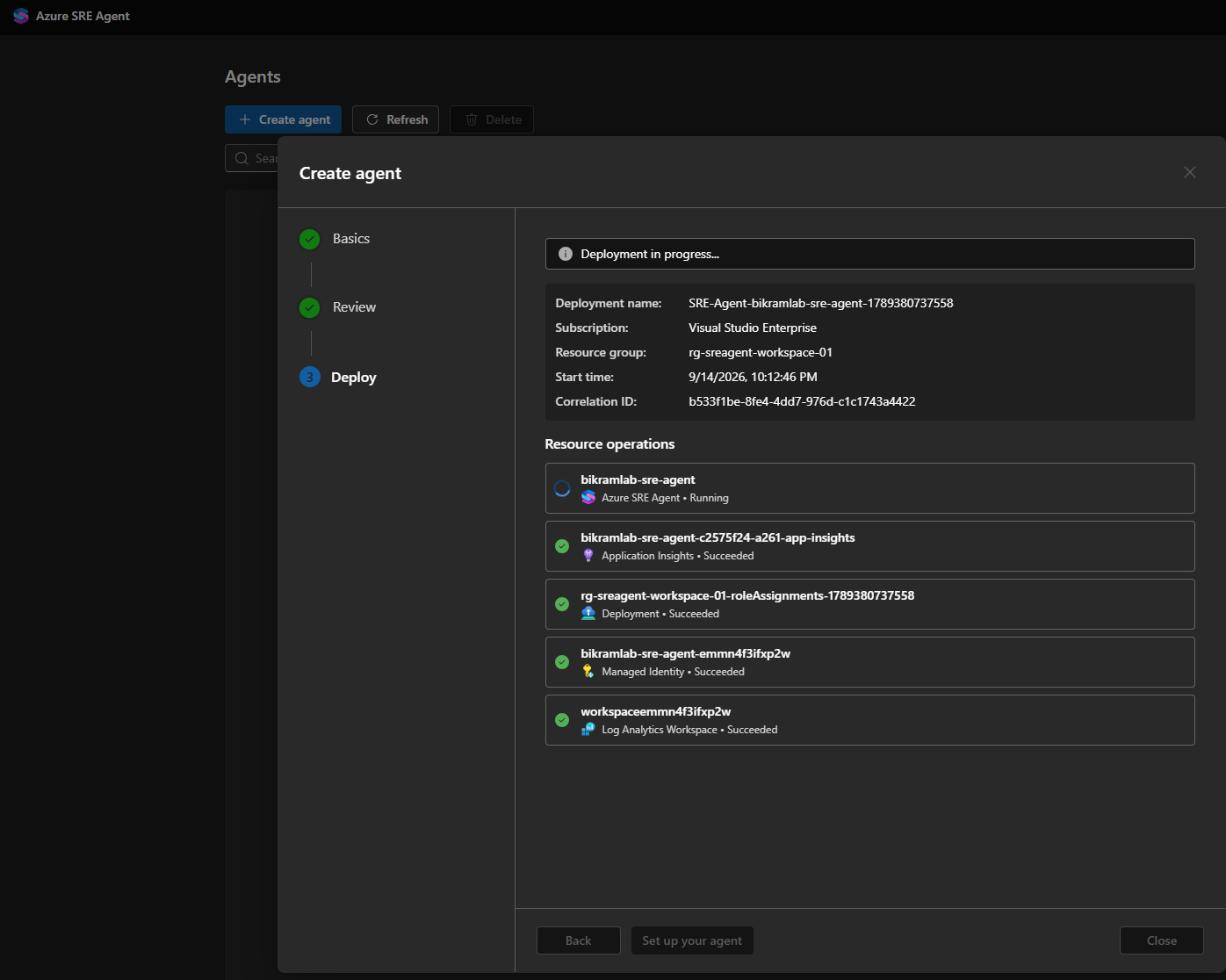
When the agent resource finishes, two more operations appear: an agent site being warmed up, and a user role assignment.
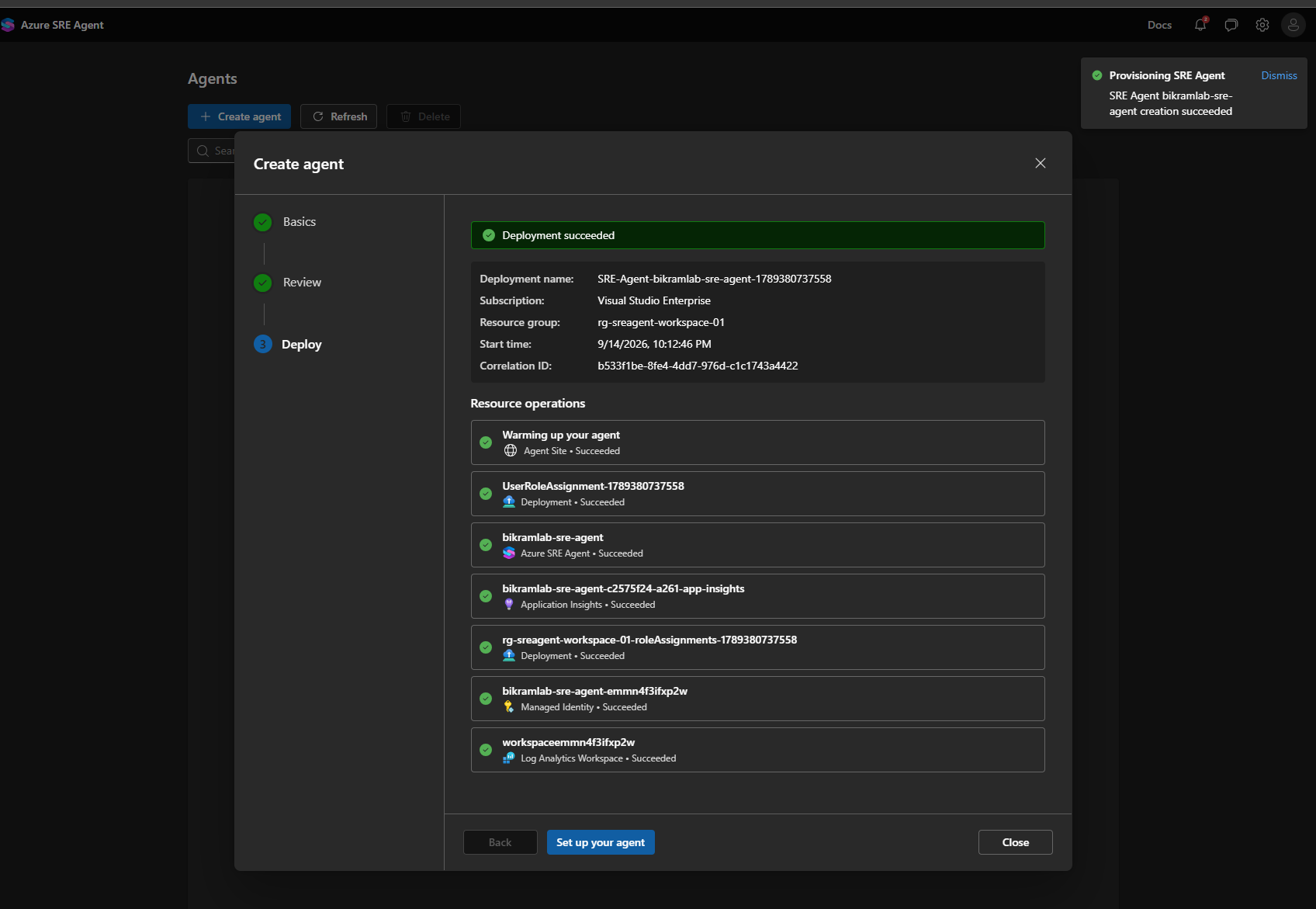
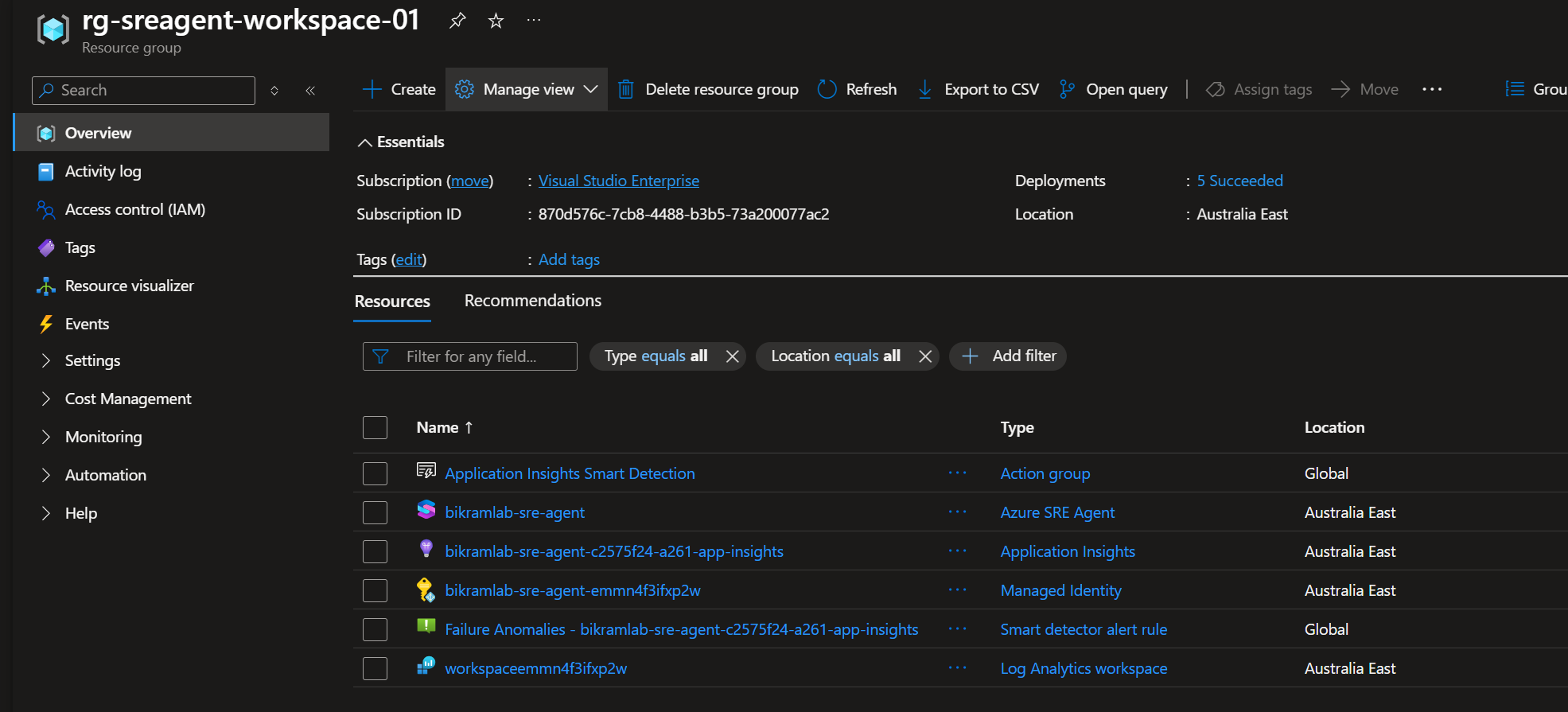
The resource group afterwards holds six resources. Three you expect (the agent, the Application Insights instance, the managed identity), one you might not (the Log Analytics workspace backing App Insights), and two that come with Application Insights rather than with the agent: a Smart Detection action group and a Failure Anomalies alert rule.
Leave the deployment blade open. Set up your agent takes you straight to the agent portal.
Sign in to the agent portal
The agent has its own site, separate from the Azure portal. If you closed the deployment blade, the address is on the agent resource under Settings then Basics, as Agent endpoint.
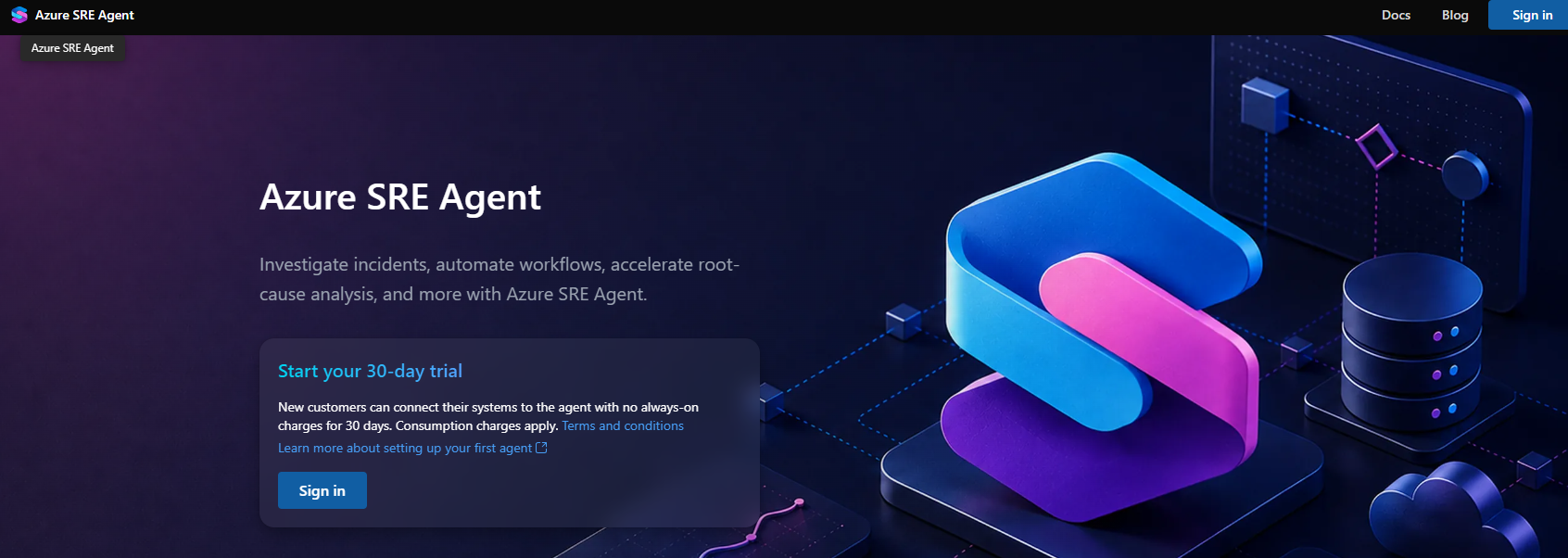
The first visit asks you to sign in and shows the trial terms: new customers get 30 days with no always-on charges, and consumption charges still apply.
After signing in, the onboarding screen offers Quickstart or Full setup, with four context sources: Code, Logs, Azure resources, and Incidents. The banner is blunt about the starting state: the agent does not know anything about your app yet.
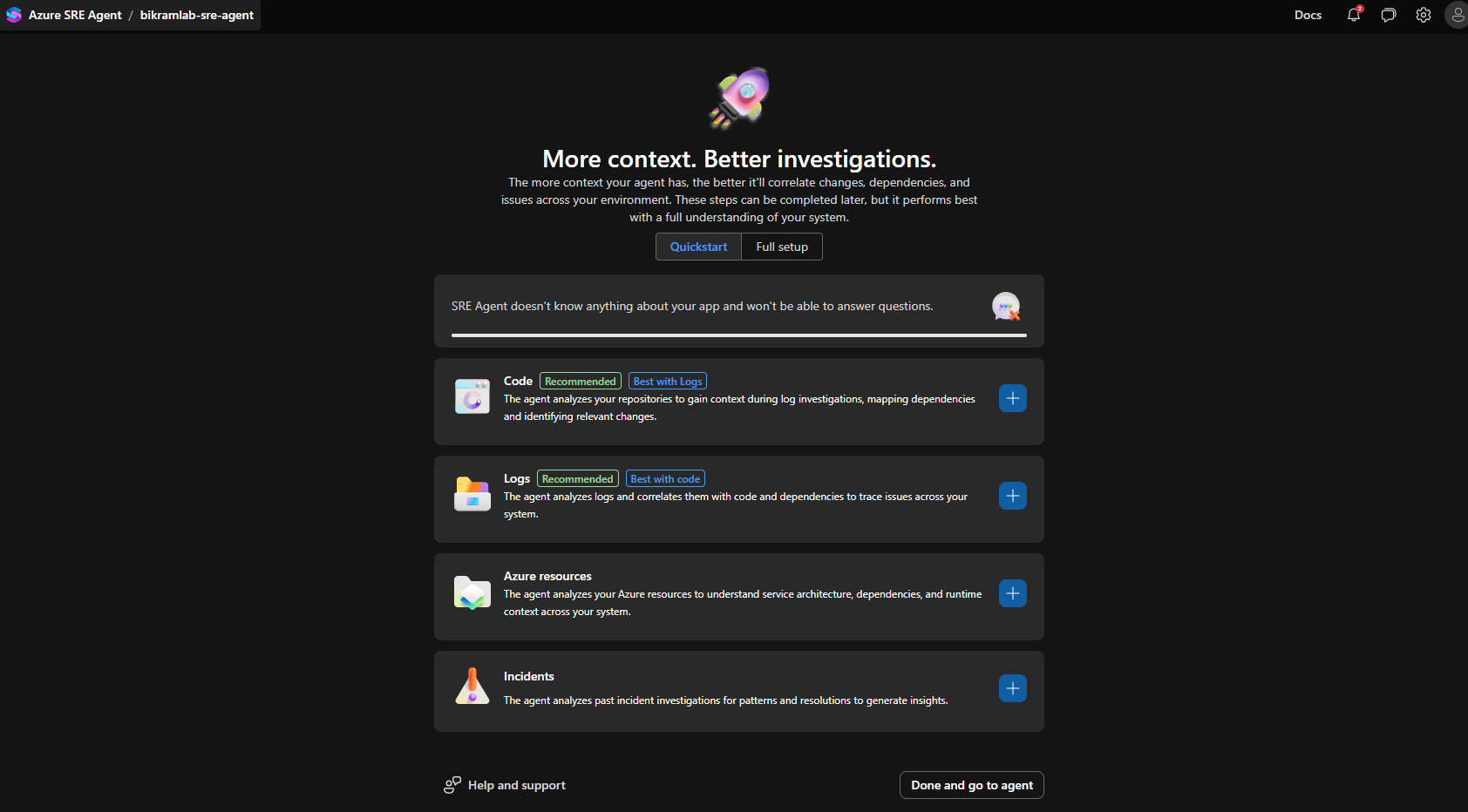
Add two of them now, Azure resources and Logs. Code and Incidents can wait.
Add the subscription
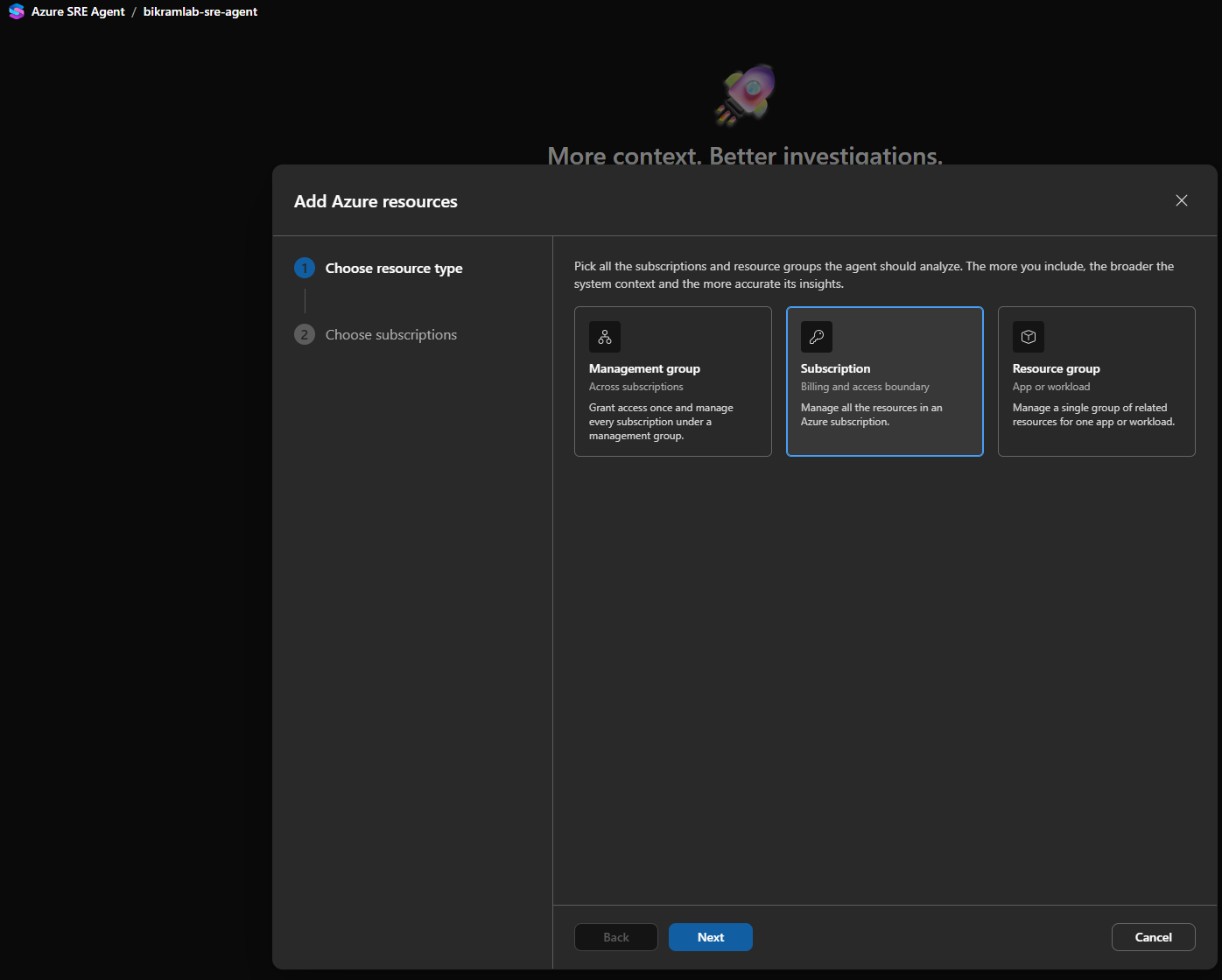
Select the plus on Azure resources. Choose the scope the agent should analyse: management group, subscription, or resource group. Pick Subscription and select Next.
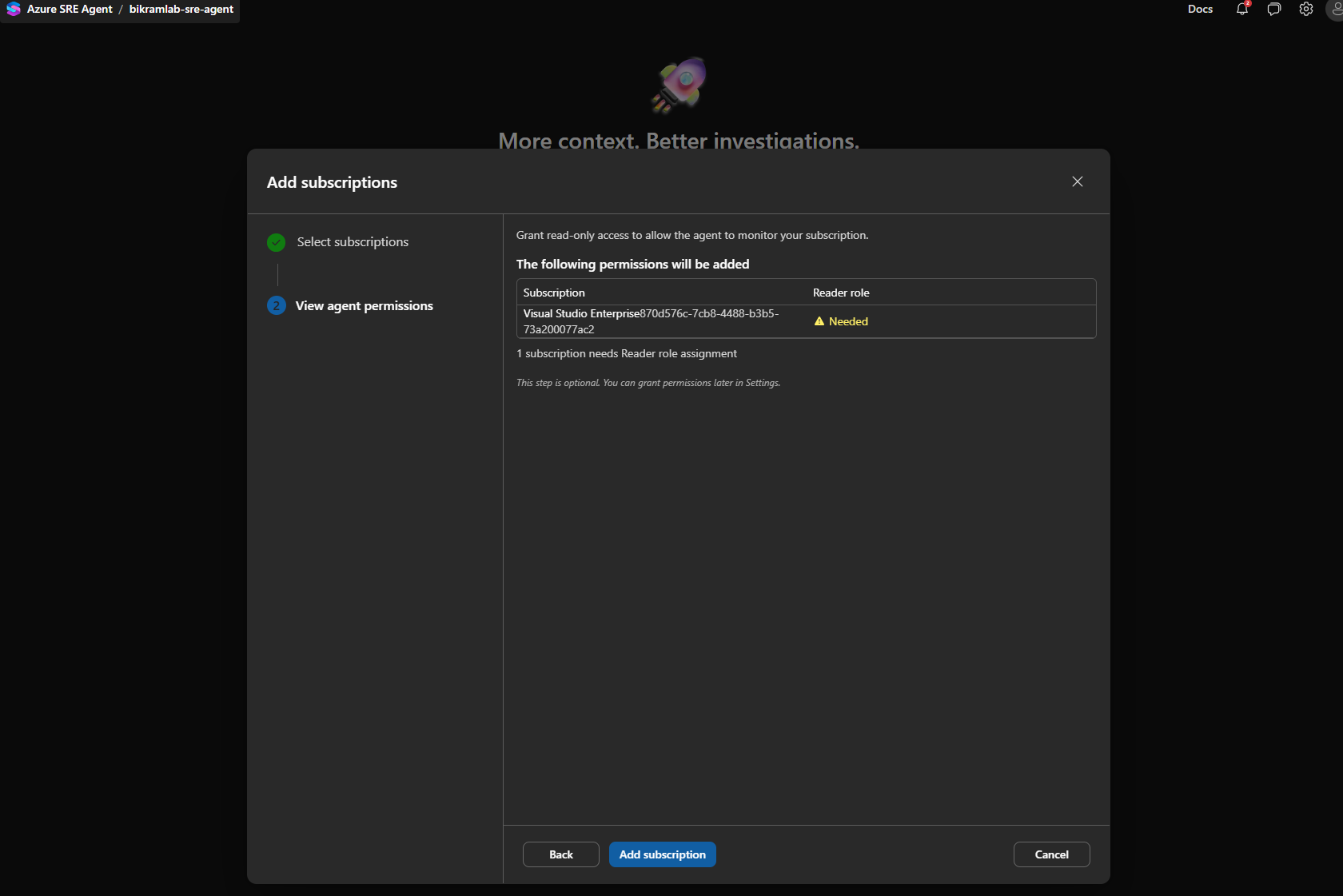
The second step lists the Reader role assignments that will be created, one per subscription you selected, and flags each one as Needed. Select Add subscription to grant them. The step is optional and can be done later under Settings, but the agent cannot list your resources until it happens.
Connect a Log Analytics workspace
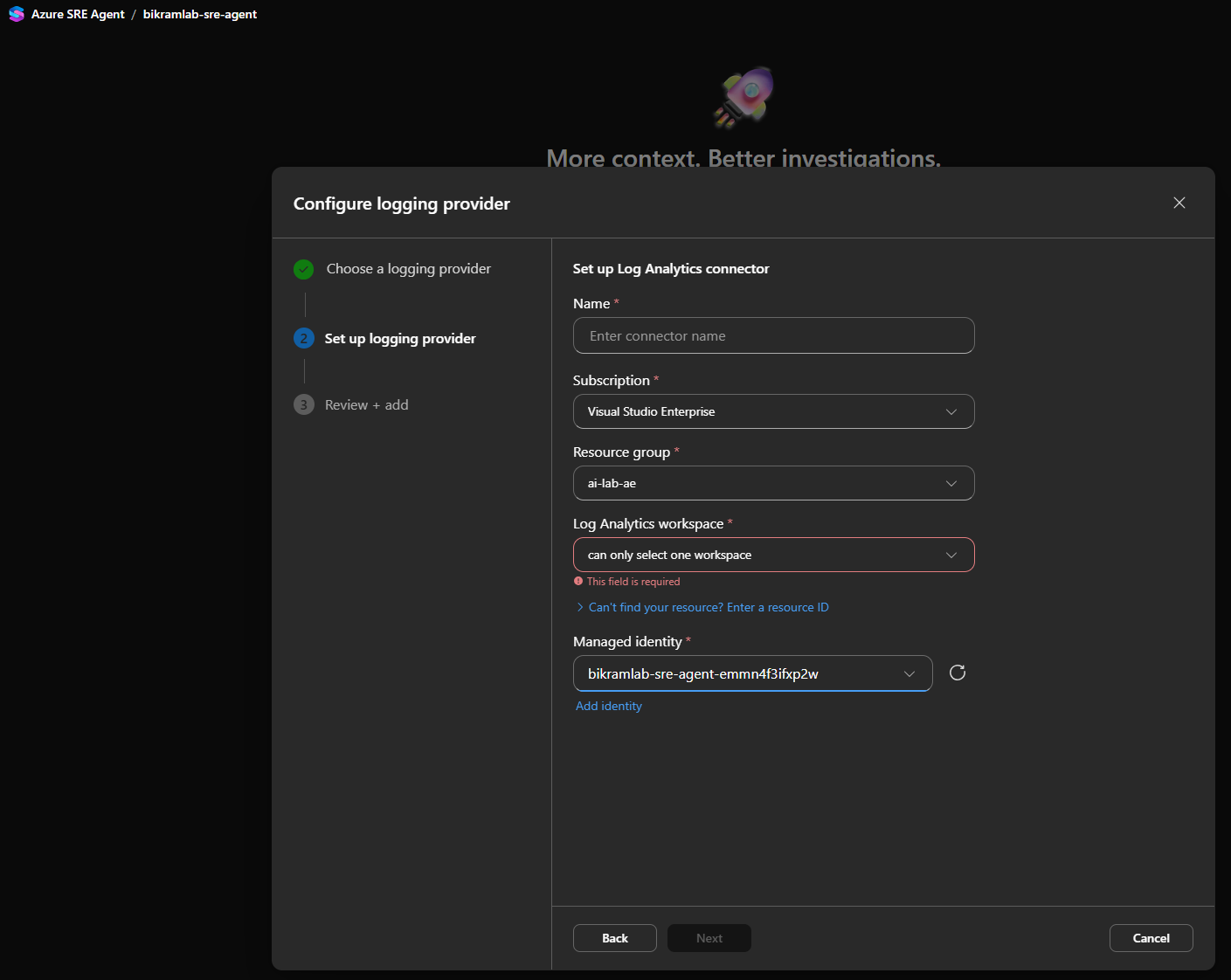
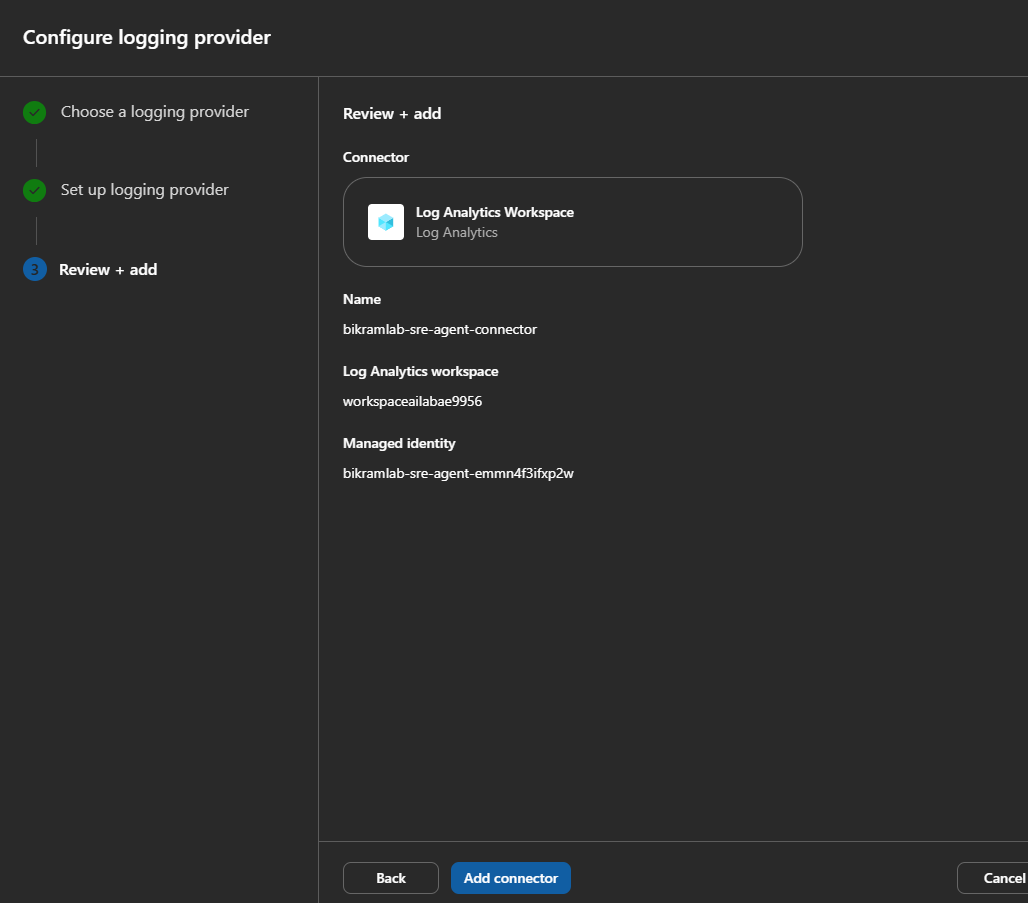
Select the plus on Logs and choose Log Analytics as the provider. The connector form asks for a name, the subscription, the resource group, the workspace, and the managed identity to use. The identity offered is the one the deployment created, bikramlab-sre-agent-emmn4f3ifxp2w.
The workspace field takes a single workspace. If your logs are spread across several, you will be adding several connectors.
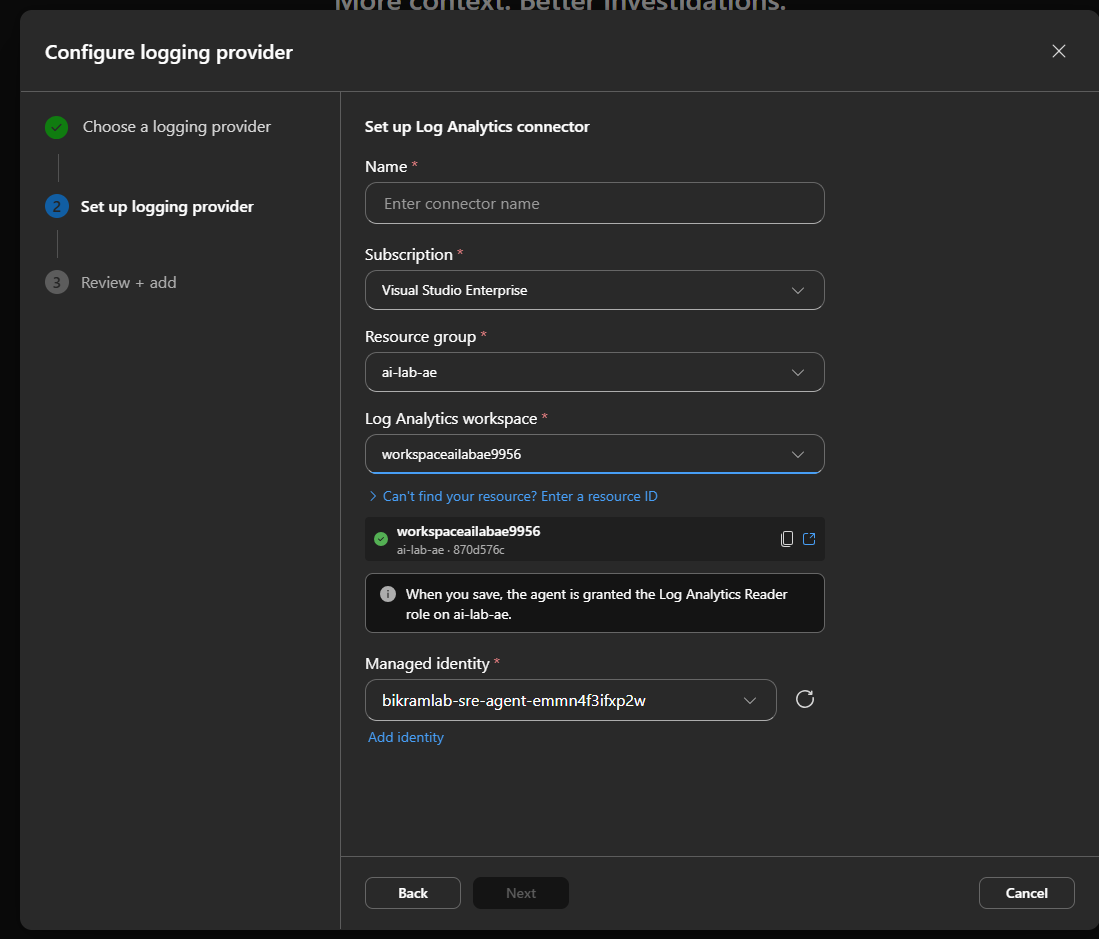
Once you pick a workspace, the form tells you what saving will do: the agent is granted the Log Analytics Reader role on the resource group holding that workspace, not just on the workspace itself.
Review the connector and select Add connector.
Back on the onboarding screen, Logs shows one log provider and Azure resources shows one subscription added. The progress bar moves off empty, and the wording softens to say the agent can gain some insights into your apps.
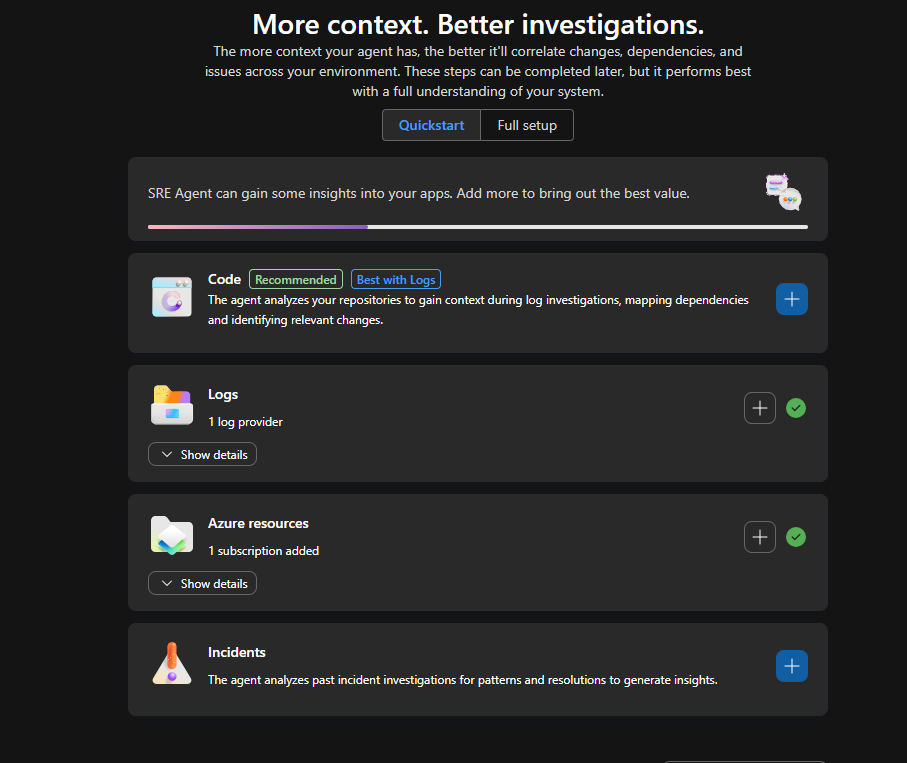
Select Done and go to agent.
Ask it a question
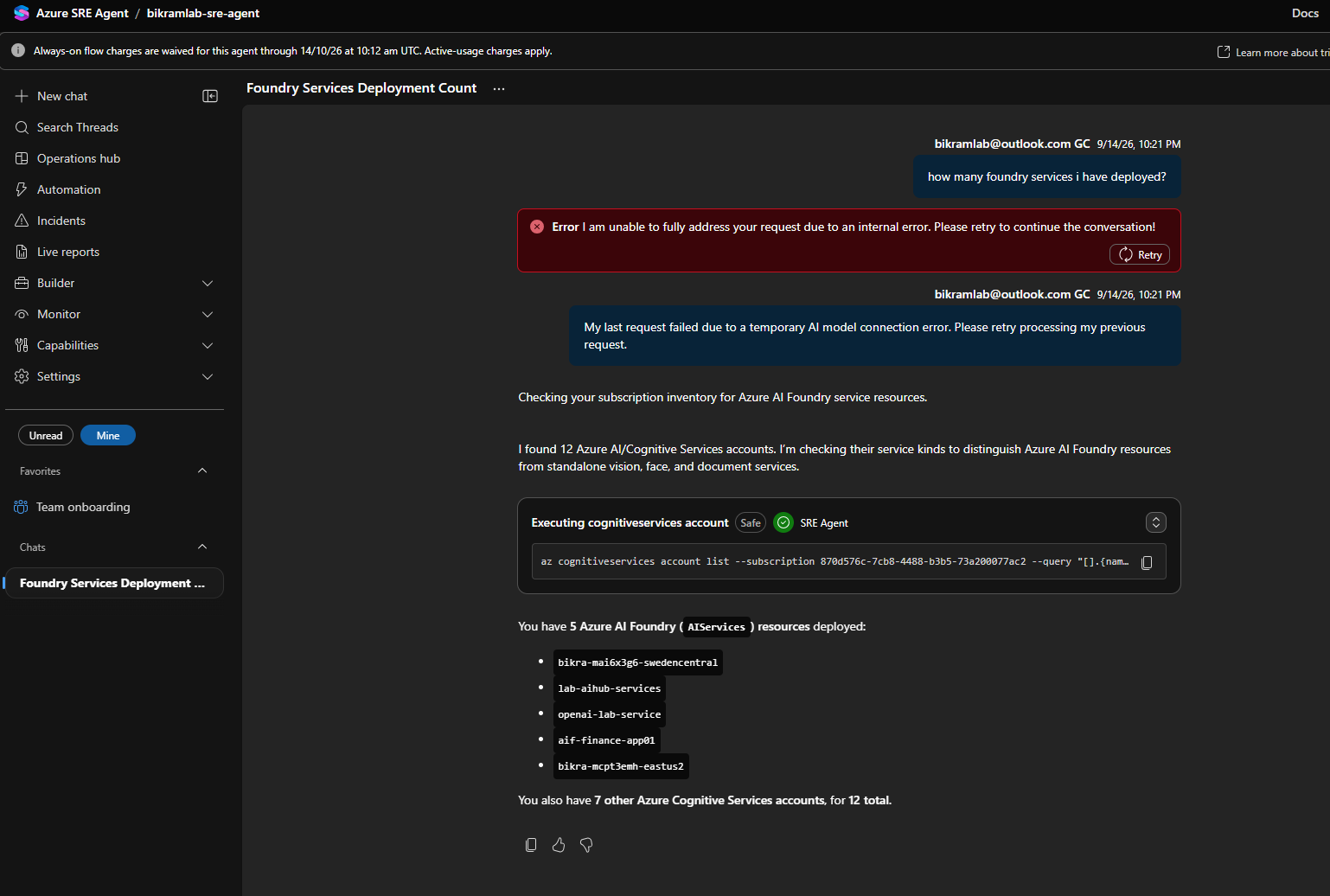
Start a new chat and ask something that needs the subscription context you just granted. This walkthrough asked how many Foundry services were deployed.
The first attempt failed with an internal error and a Retry button. Retrying carried on from where it stopped. The agent then ran az cognitiveservices account list against the subscription, filtered on the service kind, and reported 5 Azure AI Foundry (AIServices) resources out of 12 Cognitive Services accounts. The command it ran is shown inline, tagged Safe, and was executed without asking.
Approve a write action
Now ask it to change something: create a new resource group called rg-foundry-demo-01.
The agent picked australiaeast on its own, on the grounds that most of the existing Foundry resources were there, and started with a read to confirm the name was free. That read stopped on an authorisation error. The agent runs as its managed identity, which holds Reader on the subscription, and here it asked to re-run the command as you instead, on behalf of your sign in, with the scope https://management.core.windows.net/.default.
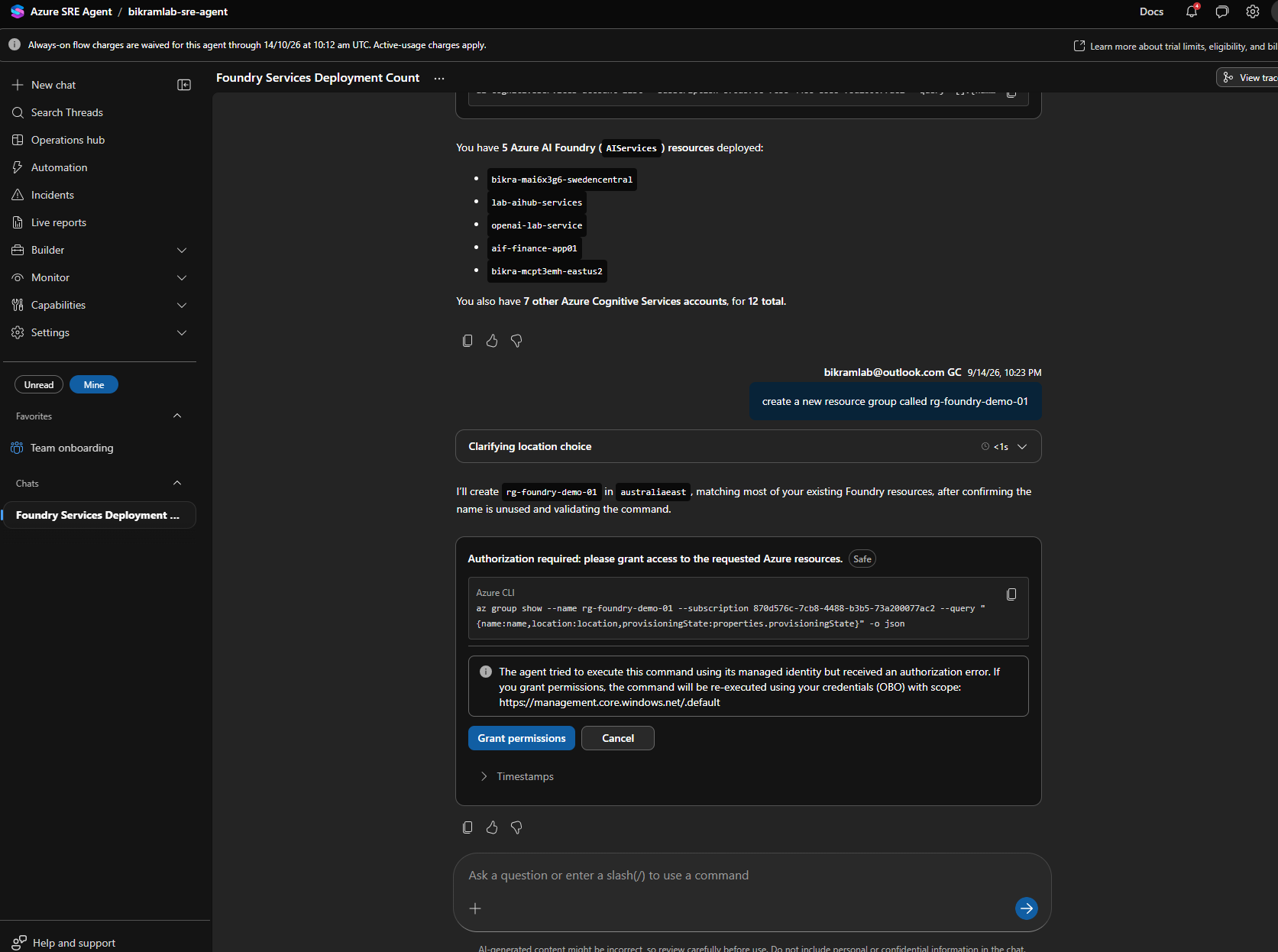
Select Grant permissions. The read comes back saying the group does not exist, and the agent then proposes the write, tagged Medium risk, with the exact az group create command and a one line impact note: creating it only adds an empty resource container, and no workloads or network resources will change.
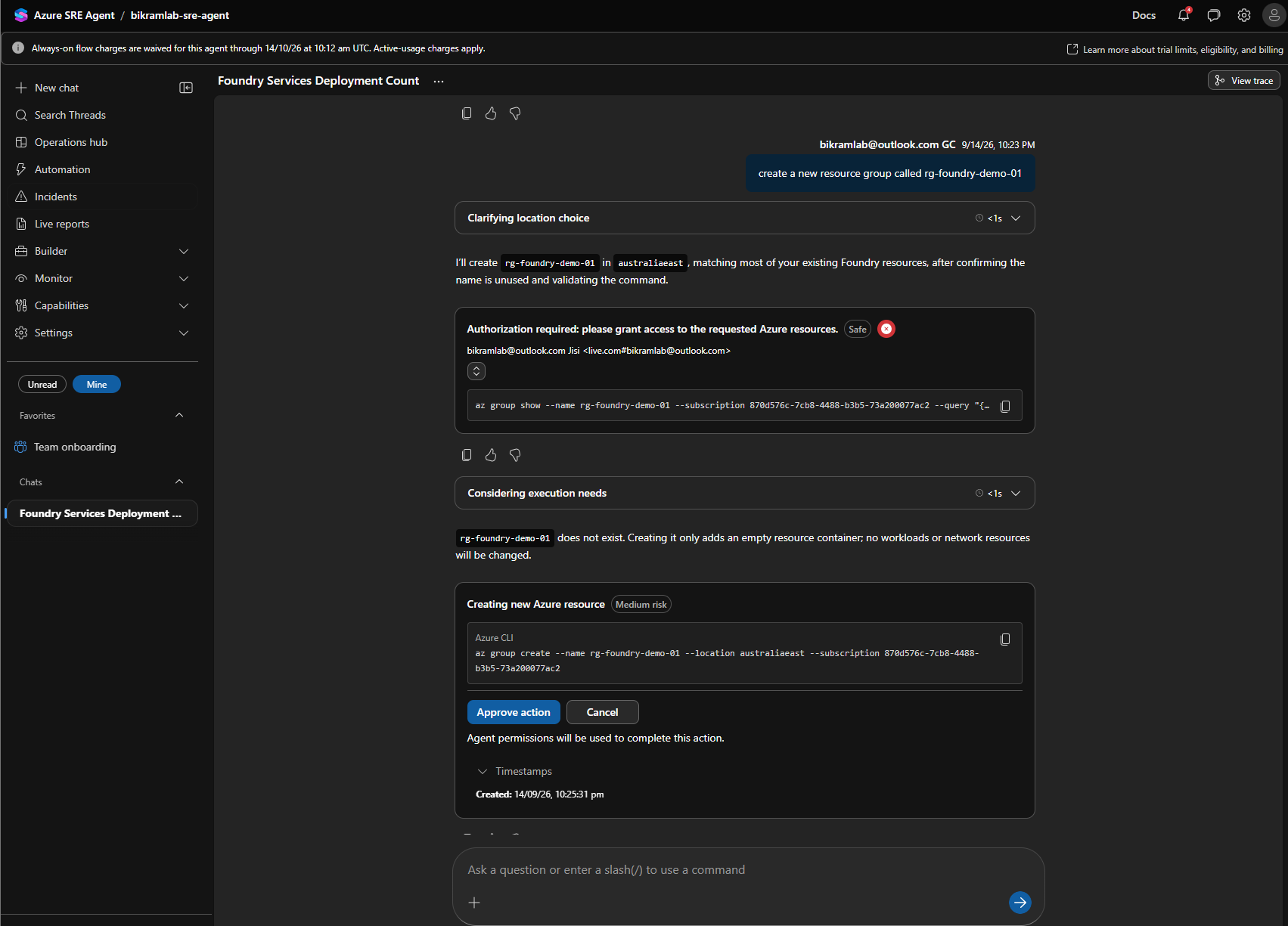
Select Approve action. While it runs, the card shows that the action is in progress using the temporary permissions you granted.
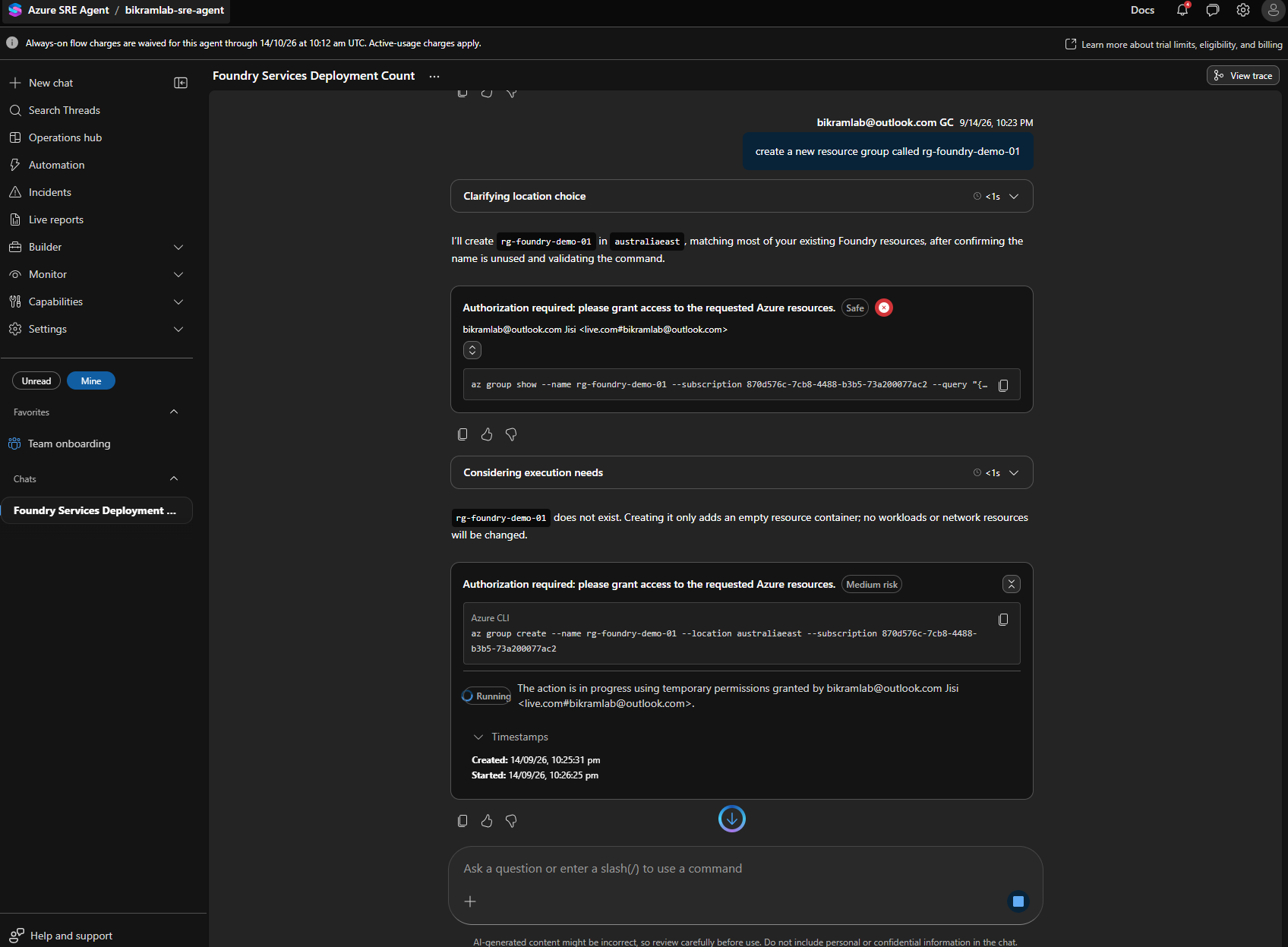
It completed in 29 seconds. The card keeps the raw CLI output under Output logs and the created, started, and completed timestamps under Timestamps, which is the record you will want when someone asks what the agent did and when.
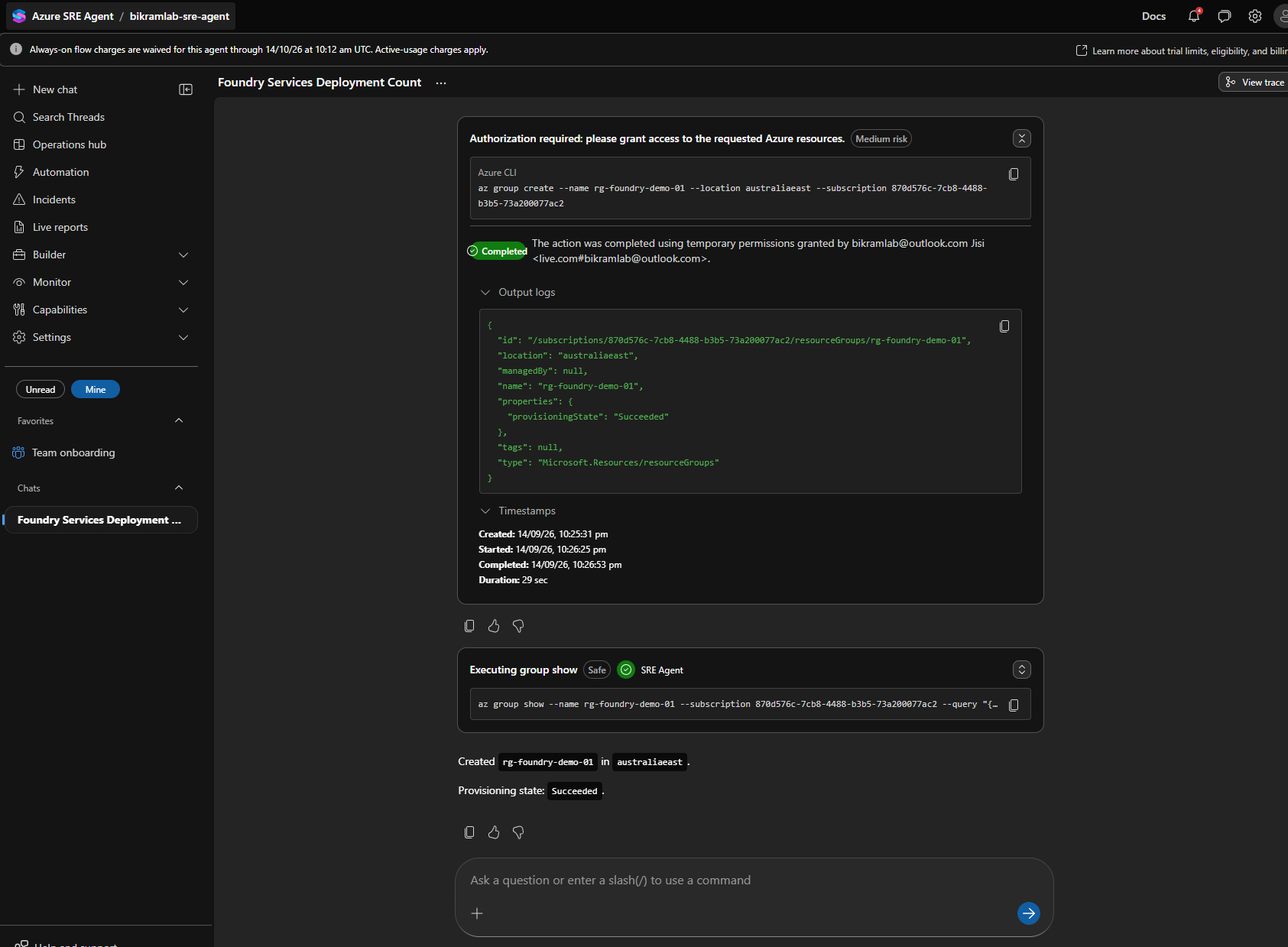
The agent then re-ran the read to confirm, and reported the group created in australiaeast with a provisioning state of Succeeded.
Where you are now
You have an agent that can read the subscription, query one Log Analytics workspace, answer questions with the CLI output attached, and make changes only when you approve them. Two context sources, Code and Incidents, are still unconfigured.
The permission model worth keeping in your head: the agent's own identity holds Reader, so anything beyond reading needs either a role assignment of its own or a temporary grant from the person in the chat. That behaviour is governed by the agent permissions level and agent mode settings, both covered in Azure SRE Agent portal surfaces.